From purchase to your first inspection
Getting Card Inspector Pro onto your Mac takes just a few minutes. The following instructions will guide you through purchasing, downloading, installing, and activating the application, so you can begin exploring the health and reliability of your storage devices.
Purchasing Card Inspector Pro
Card Inspector Pro is available through a one-time purchase of $69, with a perpetual license and activation on up to two qualifying Macs.
Select Buy Now on our website to proceed to secure checkout through Polar, our merchant of record.
Once your purchase is complete, you will receive a confirmation email containing the information needed to access your software and license.
Accessing your purchase
After completing your purchase, look for your purchase confirmation email.
The email includes your order summary, an attached invoice, and the benefits included with your purchase.
Select Access purchase to open your personal customer portal, where you can download Card Inspector Pro, retrieve your license key, and manage your license activations.
We recommend retaining this email for future reference.
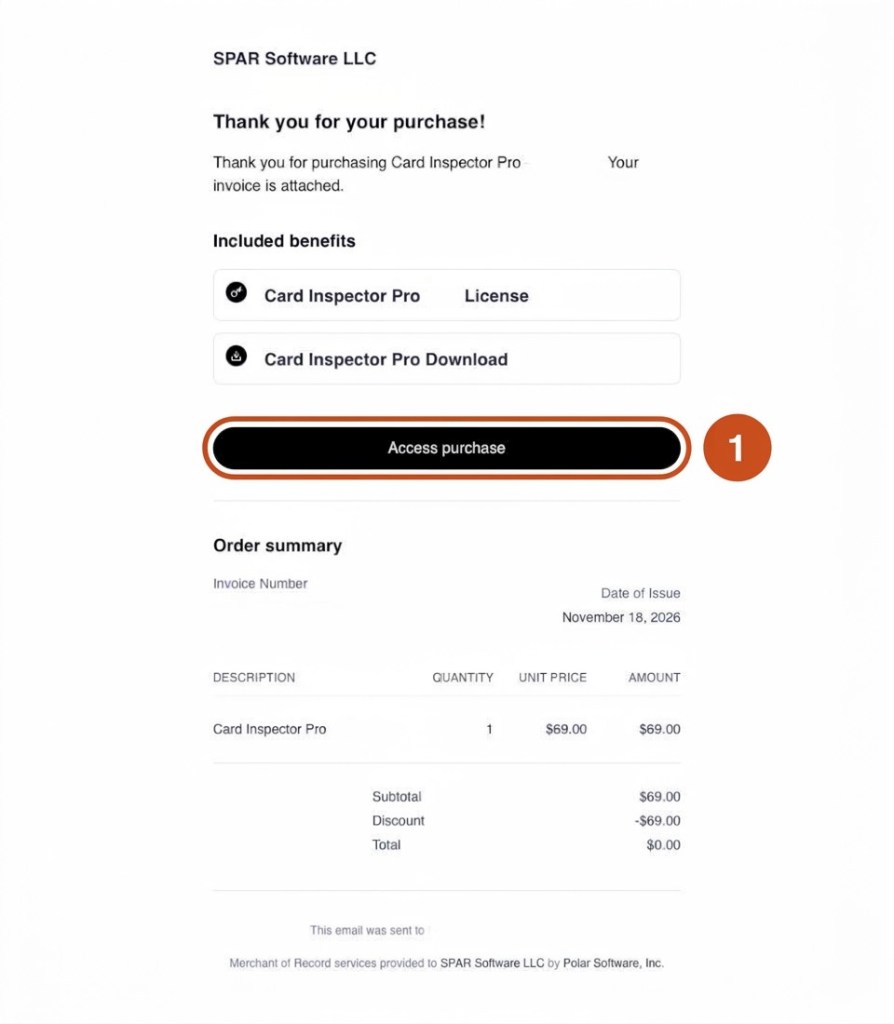
Access your software and license through your purchase confirmation email.
Downloading Card Inspector Pro
From your customer portal, you can access the software and license associated with your purchase.
Download the Card Inspector Pro package and copy your license key for use during activation.
The download package contains two items:
- The Card Inspector Pro application.
- The comprehensive, illustrated Card Inspector Pro User Guide.
Your customer portal remains available should you need to download the software again, retrieve your license key, or manage your Mac activations.
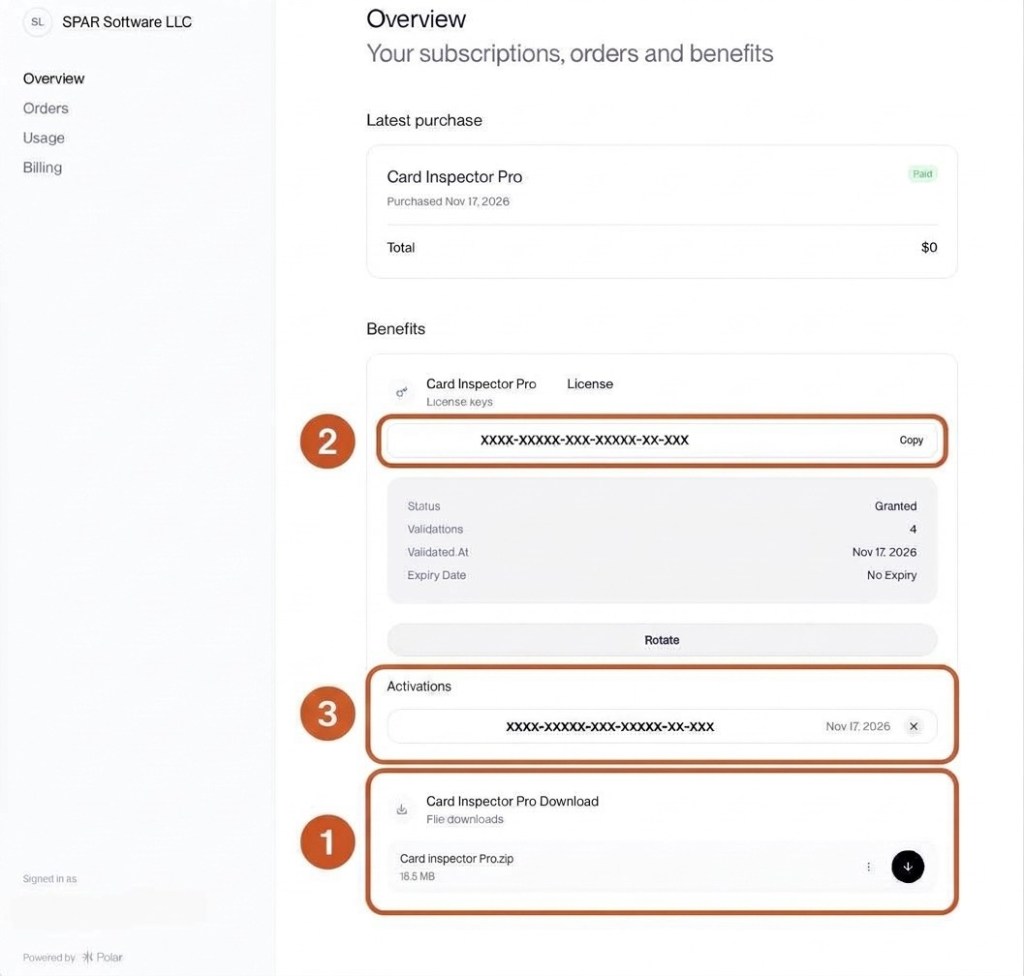
Your customer portal provides access to your software (1), license key (2), and license activations (3).
Installing Card Inspector Pro
- Open your Downloads folder.
- Double-click the downloaded ZIP file if macOS has not already extracted it.
- Open your Applications folder in a second Finder window.
- Drag Card Inspector Pro from the extracted folder into Applications.
You may keep the User Guide wherever you prefer to store your documentation.
We also recommend saving your license key in a secure, accessible location, such as your password manager. You may need it again when installing Card Inspector Pro on another Mac.
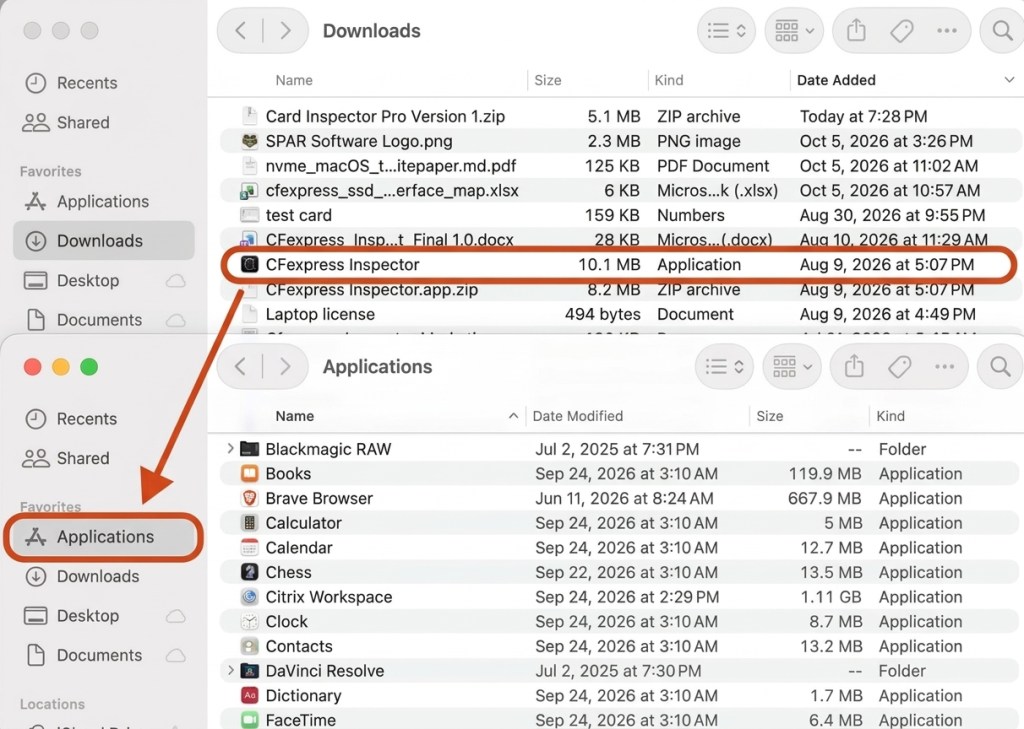
Drag Card Inspector Pro into your Applications folder.
Activating your license
Open Card Inspector Pro from your Applications folder. If macOS asks you to confirm opening an application downloaded from the internet, follow the onscreen prompt.
When the activation window appears:
- Paste your license key into the designated field.
- Select Read License Agreement.
- After reviewing the agreement, select Done.
- Check the box indicating your acceptance of the agreement.
- Select Activate License.
An internet connection is required for initial activation.
Once your license has been successfully activated, Card Inspector Pro will open to its welcome screen.
Your license permits activation on up to two qualifying Macs.
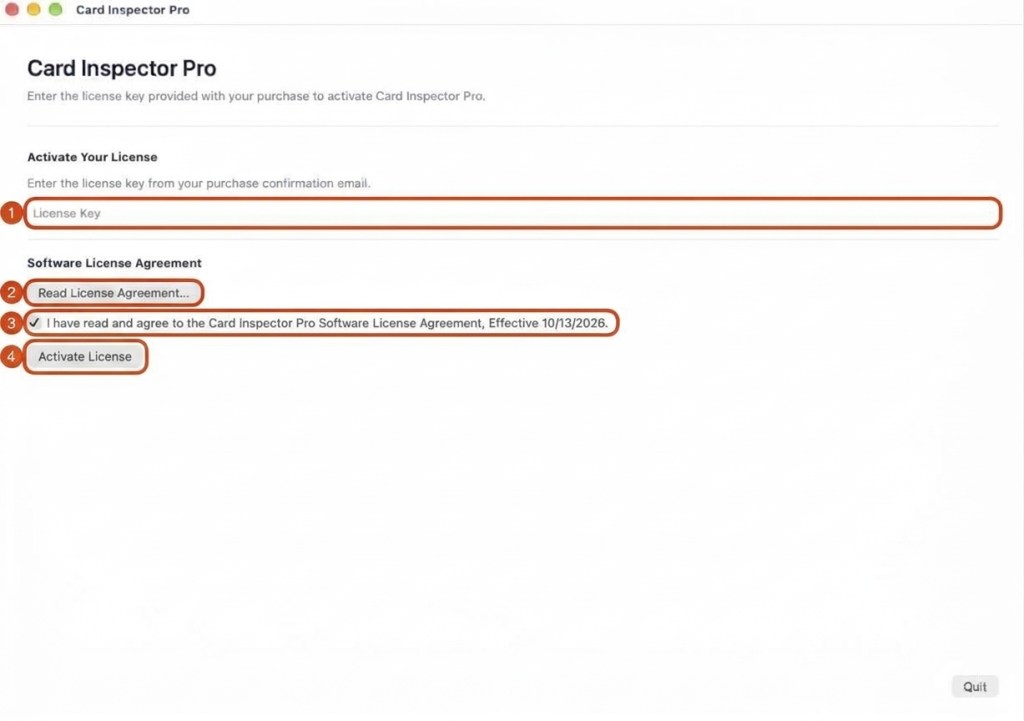
Enter your license key (1), read the software license agreement (2), accept the agreement (3), and click Activate License (4).
That’s all you need to do. After you activate the license, Card Inspector Pro should launch automatically and you are ready for your first inspections. Consult the full user guide for a full explanation of all of the features and capabilities that Card Inspector Pro can provide.

